Showing posts with label windows10. Show all posts

Friday, October 20, 2017

PAGE FAULT IN UNPAGED AREA Windows 10 Insider Build 17017 GSOD/BSOD

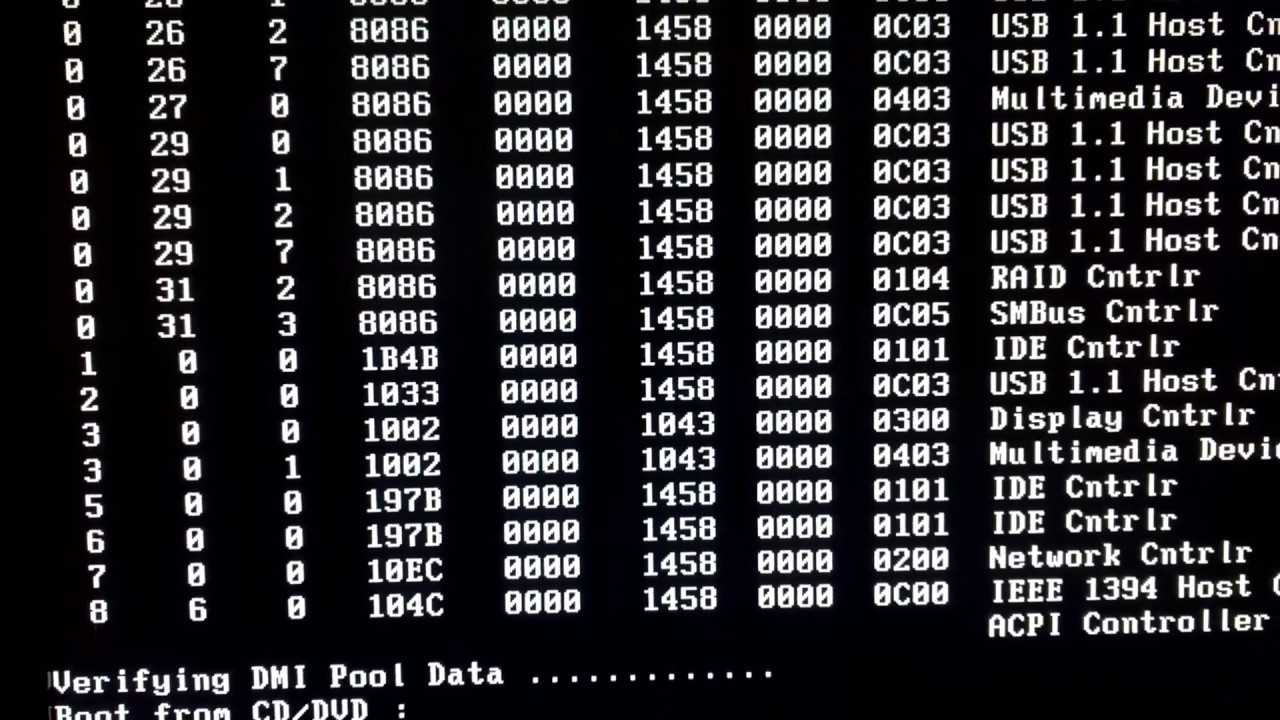
After updating to Windows Insider 17017, I rebooted. Once I did, I got stuck in a GSOD/BSOD boot loop. See the loop in this video:
After some time looking around and such, I found that I needed to copy the volsnap.sys file from the Windows.old folder to the current Windows folder.

Here are the steps I took:

  • Downloaded the Windows Media Creation Tool.
  • Booted off the USB created above.
  • Went into the Recovery tools for the system and opened the command console
  • move c:\Windows\System32\drivers\volsnap.sys c:\Windows\System32\drivers\volsnap.bkp
  • copy c:\Windows.old\Windows\System32\drivers\volsnap.sys c:\Windows\System32\drivers\volsnap.sys
  • reboot

System then booted up with no problem.

Monday, August 3, 2015

How to enable Use default gateway on remote network with Windows 10

There are a lot of tutorials out there that are for previous versions of Windows that say to right click on the VPN and choose properties, then select IPv4 and click properties. The problem is with Windows 10, at least for me, nothing happens when you click the properties button.


The way I have found to enable this functionality is via PowerShell.


Start PowerShell as an administrator then run Get-VpnConnection

1

Next run Set-VpnConnection –Name MY_VPN_NAME –SplitTunneling $true
Replace MY_VPN_NAME with the name of your VPN connection.

2

Showing posts with label windows10. Show all posts

PAGE FAULT IN UNPAGED AREA Windows 10 Insider Build 17017 GSOD/BSOD

After updating to Windows Insider 17017, I rebooted. Once I did, I got stuck in a GSOD/BSOD boot loop. See the loop in this video:

After some time looking around and such, I found that I needed to copy the volsnap.sys file from the Windows.old folder to the current Windows folder.

Here are the steps I took:

  • Downloaded the Windows Media Creation Tool.
  • Booted off the USB created above.
  • Went into the Recovery tools for the system and opened the command console
  • move c:\Windows\System32\drivers\volsnap.sys c:\Windows\System32\drivers\volsnap.bkp
  • copy c:\Windows.old\Windows\System32\drivers\volsnap.sys c:\Windows\System32\drivers\volsnap.sys
  • reboot

System then booted up with no problem.

How to enable Use default gateway on remote network with Windows 10

There are a lot of tutorials out there that are for previous versions of Windows that say to right click on the VPN and choose properties, then select IPv4 and click properties. The problem is with Windows 10, at least for me, nothing happens when you click the properties button.


The way I have found to enable this functionality is via PowerShell.


Start PowerShell as an administrator then run Get-VpnConnection

1

Next run Set-VpnConnection –Name MY_VPN_NAME –SplitTunneling $true
Replace MY_VPN_NAME with the name of your VPN connection.

2