Showing posts with label tools. Show all posts

Sunday, October 4, 2015

Simplify standing up an IE Virtual Machine with PSIEVM

Over the weekend I was bored and decided to start a project to automate the process of standing up an IE VM with powershell. I would like to introduce PSIEVM. A powershell module that allows you to stand up an IE VM in VirtualBox (other hosts coming in the future) in one line.

PS> Get-IEVM –OS Win7 –IEVersion 9

That is the simplest form of the command.

Installation

To install, download from the github project releases page and extract to $env:USERPROFILE\WindowsPowerShell\Modules. Then to use it just import it

PS> Import-Module psievm
PS> Get-IEVM –OS Win7 –IEVersion 10 –AlternateVMLocation "G:\VMs\" –VMRootPath "G:\VMs\"


The parameters for Get-IEVM:

Name

Required

Type

Default

OS

YES

String

[Empty]

The OS to use:

  • WinXP, WindowsXP, Windows XP, XP
  • WinVista, WindowsVista, Windows Vista, Vista
  • Win7, Windows7, Windows 7, 7
  • Win8, Windows8, Windows 8, 8
  • Win8.1, Windows8.1, Windows 8.1, 8.1
  • Win10, Windows10, Windows 10, 10

IEVersion

YES

String

[Empty]

The version of IE. This is dependant on the version of Windows (See the table below).

  • 6
  • 7
  • 8
  • 9
  • 10
  • 11
  • Edge

Shares

NO

String[]

[Empty]

These are the paths to add as a share in the VM through the VMHost. May not be fully supported in all VMHosts.

AlternateVMLocation

NO

String

[Empty]

By default the VM images will be downloaded from Microsoft, but if you have the images downloaded already, you can use this to tell the script where to get them. This can be a URL, Network Share, or a local path. The images need to follow the following pattern:

IE: IE<IEVersion>.Win<OSVersion>.For.Windows.<VMHost>.zip
Edge: Microsoft%20Edge.Win10.For.Windows.<VMHost>.zip

VMHost

NO

String

VirtualBox

The VM Host to use. Only VirtualBox is currently supported but here is the full list that will be supported (and maybe others).

  • VirtualBox
  • HyperV
  • Vagrent
  • VPC
  • VMWare

IgnoreInvalidMD5

NO

Boolean

$False

After the zip image is downloaded, the file MD5 hash is validated. If you use your own images, you will want to set this to $True.

VMRootPath

NO

String

$PWD

This is the path to download the zip image to and create the VM image folder where the VM will reside. By default it will use the Current Working Directory.

OS / IEVersion

This is the version of the OS that you want hosted and the version of IE you want with it. Here are the supported values:


IE 6

IE 7

IE 8

IE 9

IE 10

IE 11

MS Edge

Requires 64-bit Emulation

XP

X


X


Vista


X


Win7


X

X

X

X


Win8


X


Win8.1


X


X

Win10


X

X

Download PSIEVM

Friday, April 4, 2014

Powershell Script to download //BUILD/ 2014 sessions

Here is a powershell script that downloads all the mp4 video sessions available on Channel9. It first pulls all the HD videos, then checks the normal quality videos. It names the videos based on the session title. It will only download the video if it does not exist in the destination directory.


Update: Blogger doesn't want to show my GIST, so here is a direct link to it.

Sunday, January 5, 2014

Published AttachToAny Extension

Download VS Extension

Fork on GitHub


This weekend I started looking at what it would take to get the AttachTo Visual Studio Extension to work with Visual Studio 2013. The AttachTo project hasn’t been updated in some time. I forked the project and pulled down the source. It wasn’t actually that hard to make it work. I just needed to update the manifest file and include 2013 as a supported version. But I had a problem. No matter what I did, I could not build AttachTo. It was created in 2012, not 2013, and I no longer have 2012 installed. Plus I wanted more from the extension. It only supports 3 processes to attach to; IIS, IISExpress, and NUnit. I wanted to be able to configure the extension to support any number of processes. So AttachToAny was born.

Now, there is a limit of 20 items that you can define to attach to. This limit may increase if there is a need. But the limitation is there because I wanted to be able to bind keyboard shortcuts to any of the Attach commands.

By default, there are 3 items defined. These are the 3 that ship with AttachTo. As you can see from the screenshot below, I bound IIS to the keyboard shortcut CTRL+SHIFT+ALT+A. You can also see that I added the ability to attach to the Chrome process.

ata-preview


Bringing up the Options Dialog shows you that there are 20 “Attachables”. Click on the “…” button to edit/configure the “Attachables”.

image

This brings up the “AttachDescriptor Collection Editor”.

image

Select an “Unused” slot and enter the name. This will be the menu item text.

image

Next, you can disable any  defined items by setting “Enabled” to “False”.

PrependAttachTo will put “Attach To” in front of the Name when displayed in the menu.

Finally, define the list of processes that should be used to determine what to attach to. You can click the dropdown for “Processes” and enter 1 item per-line, or you can type in each process, separating by a semi-colon.

image

Click “OK” –> “OK” to save the changes you made. Now if you open the “TOOLS” menu you will see the newly added item.

image


Release History

  • 1.0.4
    • Added a dialog for selecting which process to attach to. This is off by default.
    • Added option to use "best guess" when attaching, or open the dialog when there are multiple processes that match. "best guess" is the default, it is configurable per Attachable.
    • updated preview to reflect the submenu.
  • 1.0.3
    • fixed the issue with the changes not being persisted to storage.
  • 1.0.2
    • fixed the process name for IIS. It will not affect any of your configurations, it will only fix the incorrectly named "wp3.exe" process to "w3wp.exe".
  • 1.0.1
    • bug fix for items that are removed still showing in the menu
    • cleaner menu system. Items are now a submenu of Tools -> AttachToAny
  • 1.0
    • Initial release.


Download VS Extension

Fork on GitHub

Monday, December 30, 2013

Updates to EndpointMVC published on Nuget


EndpointMVC : Nuget

PM> Install-Package EndpointMvc


  • Updated to use .NET4.5, ASPNET.MVC5, WepApi2


    • These are nuget dependencies and will pull in if needed

  • New side navigation:


    • image
    • Can be collapsed off screen
    • Shows where in the document you are
    • Has a search box to filter endpoints
    • If Mousetrap.js is loaded, keyboard bindings are set for collapsing and search box focus.  

  • New deep link for custom types that shows information about the type

image


  • Updated to use bootstrap3 for layout

  • Updated to use Font Awesome for images

  • Smooth Scrolling in navigation if jQuery ScrollTo plugin is loaded

Sunday, August 11, 2013

New open source tool: Fyles

Fyles is a tool that will gather all the icons for all the file types that are on a system. It then generates a sprite sheet and css for all of those extensions. Fyles only references unique icons, so if there are file types that share the same icon, it will only be in the sprite once. The exception to this is the “default” icon, to ensure that the default icon exists in the sprite, it may exist more than once.

Here is a sample of how the sprite is laid out:

fyles-sample

And here is a small block of what the css looks like:

And here is how you would include an icon on your page:

Saturday, July 2, 2011

PowerShell Script to pull Album Art for missing directories

I recently went and downloaded Album Art Downloader to get some missing album art for some of the albums I have. But I quickly noticed that it would be a manual process to find the directories that needed the art added, and I am lazy.

Luckily there is a command line interface for AAD. But that alone would not accomplish what I wanted to do. I figured now would be a good time to try my hand at a powershell script.

This script will take each artist/album and use AAD to get album art and save it as folder.jpg. The script expects the root directory to contain “artist/album” hierarchy.

You will have to change the “root” and possibly the location of the aad.exe.

Monday, August 23, 2010

SMS Backup

screenshot SMS Backup was always one of the first applications I had to install on my device if I had to wipe it clean. SMS Backup is released under the Apache License, Version 2.0 and developed by Christoph Studer. Development has pretty much been stale on this application for the past year.

That is where SMS Backup+ comes in. It is an improved version of SMS Backup, also released under the Apache License, Version 2.0 and developed by Jan Berkel. Some of the main differences are:

  • XOAuth support – Uses XOAuth to authenticate with Gmail, instead of you supplying your username and password
  • Faster – Does not base64 encode the emails before transferring
  • IMAP support – Doesn’t just work with Gmail (but defaults to Gmail), it works with any IMAP server
  • Restore – You can transfer sms messages back from email to the device.
  • MMS Not Yet Supported, but planned

This is one of the applications I like to place in the Ron Popeil category, because you can “set it, and forget it”.

You can install from the Android Market for free:

Tuesday, August 10, 2010

Notepad2 Theme

xmlfileI love Notepad2. It is the “basic” text editor that should ship in Windows. It is one of the first things I download on a new system, I replace notepad with it, then I add the context menu to open any file in notepad2. I have recently moved to a dark color theme for all my text editors and base them all off the Coding Instinct Visual Studio color scheme. Here is a settings file for Notepad2 that is based on the Coding Instinct Visual Studio color scheme.

I have changed all the supported languages in the configuration, but I have not tested them all. Some may not be 100% correct, or there may be a color that just doesn’t look right on the dark background.

To import the theme follow the following steps:

  • Download the theme file
  • Open Notepad2
  • Press Ctrl+F12, or click View –> Customize Schemes
  • Click on Import
  • Select the downloaded theme file

Fixed link to the download. Seems like skydrive changed the link on me.

Monday, August 9, 2010

Windows 7 Skin TLB Command Line

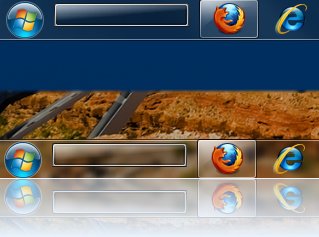
shI have been a huge fan of True Launch Bar for years. I do not have anything to do with the product, nor do I get anything in return for “plugging” it. I use it a lot less now with Windows 7, but I still use it to put a command line right in the task bar. TLB is a highly customizable taskbar replacement for Quick Launch.


screenshotTLB offers a wide assortment of plug-ins, plus an SDK for developers. You can get TLB right now for $13.93, that is 30% off the normal price, and well worth it.

Now that you know what TLB is, I have created a simple little skin for the Command Line plug-in that gives it a Windows 7 look. Download the skin, then extract it to the “<TrueLaunchBarInstall>\plugins\cmdline\skins” directory.

Download Skin

Now if it were possible to update existing skins on the website. I want to lighten or even remove the dark border around the border so it looks better on lighter backgrounds. The zip file for the skin contains the skin image, but also contains the Paint.NET file so you can remove it if you wanted to.

Showing posts with label tools. Show all posts

Simplify standing up an IE Virtual Machine with PSIEVM

Over the weekend I was bored and decided to start a project to automate the process of standing up an IE VM with powershell. I would like to introduce PSIEVM. A powershell module that allows you to stand up an IE VM in VirtualBox (other hosts coming in the future) in one line.

PS> Get-IEVM –OS Win7 –IEVersion 9

That is the simplest form of the command.

Installation

To install, download from the github project releases page and extract to $env:USERPROFILE\WindowsPowerShell\Modules. Then to use it just import it

PS> Import-Module psievm
PS> Get-IEVM –OS Win7 –IEVersion 10 –AlternateVMLocation "G:\VMs\" –VMRootPath "G:\VMs\"


The parameters for Get-IEVM:

Name

Required

Type

Default

OS

YES

String

[Empty]

The OS to use:

  • WinXP, WindowsXP, Windows XP, XP
  • WinVista, WindowsVista, Windows Vista, Vista
  • Win7, Windows7, Windows 7, 7
  • Win8, Windows8, Windows 8, 8
  • Win8.1, Windows8.1, Windows 8.1, 8.1
  • Win10, Windows10, Windows 10, 10

IEVersion

YES

String

[Empty]

The version of IE. This is dependant on the version of Windows (See the table below).

  • 6
  • 7
  • 8
  • 9
  • 10
  • 11
  • Edge

Shares

NO

String[]

[Empty]

These are the paths to add as a share in the VM through the VMHost. May not be fully supported in all VMHosts.

AlternateVMLocation

NO

String

[Empty]

By default the VM images will be downloaded from Microsoft, but if you have the images downloaded already, you can use this to tell the script where to get them. This can be a URL, Network Share, or a local path. The images need to follow the following pattern:

IE: IE<IEVersion>.Win<OSVersion>.For.Windows.<VMHost>.zip
Edge: Microsoft%20Edge.Win10.For.Windows.<VMHost>.zip

VMHost

NO

String

VirtualBox

The VM Host to use. Only VirtualBox is currently supported but here is the full list that will be supported (and maybe others).

  • VirtualBox
  • HyperV
  • Vagrent
  • VPC
  • VMWare

IgnoreInvalidMD5

NO

Boolean

$False

After the zip image is downloaded, the file MD5 hash is validated. If you use your own images, you will want to set this to $True.

VMRootPath

NO

String

$PWD

This is the path to download the zip image to and create the VM image folder where the VM will reside. By default it will use the Current Working Directory.

OS / IEVersion

This is the version of the OS that you want hosted and the version of IE you want with it. Here are the supported values:


IE 6

IE 7

IE 8

IE 9

IE 10

IE 11

MS Edge

Requires 64-bit Emulation

XP

X


X


Vista


X


Win7


X

X

X

X


Win8


X


Win8.1


X


X

Win10


X

X

Download PSIEVM

Powershell Script to download //BUILD/ 2014 sessions

Here is a powershell script that downloads all the mp4 video sessions available on Channel9. It first pulls all the HD videos, then checks the normal quality videos. It names the videos based on the session title. It will only download the video if it does not exist in the destination directory.


Update: Blogger doesn't want to show my GIST, so here is a direct link to it.

Published AttachToAny Extension

Download VS Extension

Fork on GitHub


This weekend I started looking at what it would take to get the AttachTo Visual Studio Extension to work with Visual Studio 2013. The AttachTo project hasn’t been updated in some time. I forked the project and pulled down the source. It wasn’t actually that hard to make it work. I just needed to update the manifest file and include 2013 as a supported version. But I had a problem. No matter what I did, I could not build AttachTo. It was created in 2012, not 2013, and I no longer have 2012 installed. Plus I wanted more from the extension. It only supports 3 processes to attach to; IIS, IISExpress, and NUnit. I wanted to be able to configure the extension to support any number of processes. So AttachToAny was born.

Now, there is a limit of 20 items that you can define to attach to. This limit may increase if there is a need. But the limitation is there because I wanted to be able to bind keyboard shortcuts to any of the Attach commands.

By default, there are 3 items defined. These are the 3 that ship with AttachTo. As you can see from the screenshot below, I bound IIS to the keyboard shortcut CTRL+SHIFT+ALT+A. You can also see that I added the ability to attach to the Chrome process.

ata-preview


Bringing up the Options Dialog shows you that there are 20 “Attachables”. Click on the “…” button to edit/configure the “Attachables”.

image

This brings up the “AttachDescriptor Collection Editor”.

image

Select an “Unused” slot and enter the name. This will be the menu item text.

image

Next, you can disable any  defined items by setting “Enabled” to “False”.

PrependAttachTo will put “Attach To” in front of the Name when displayed in the menu.

Finally, define the list of processes that should be used to determine what to attach to. You can click the dropdown for “Processes” and enter 1 item per-line, or you can type in each process, separating by a semi-colon.

image

Click “OK” –> “OK” to save the changes you made. Now if you open the “TOOLS” menu you will see the newly added item.

image


Release History

  • 1.0.4
    • Added a dialog for selecting which process to attach to. This is off by default.
    • Added option to use "best guess" when attaching, or open the dialog when there are multiple processes that match. "best guess" is the default, it is configurable per Attachable.
    • updated preview to reflect the submenu.
  • 1.0.3
    • fixed the issue with the changes not being persisted to storage.
  • 1.0.2
    • fixed the process name for IIS. It will not affect any of your configurations, it will only fix the incorrectly named "wp3.exe" process to "w3wp.exe".
  • 1.0.1
    • bug fix for items that are removed still showing in the menu
    • cleaner menu system. Items are now a submenu of Tools -> AttachToAny
  • 1.0
    • Initial release.


Download VS Extension

Fork on GitHub

Updates to EndpointMVC published on Nuget


EndpointMVC : Nuget

PM> Install-Package EndpointMvc


  • Updated to use .NET4.5, ASPNET.MVC5, WepApi2


    • These are nuget dependencies and will pull in if needed

  • New side navigation:


    • image
    • Can be collapsed off screen
    • Shows where in the document you are
    • Has a search box to filter endpoints
    • If Mousetrap.js is loaded, keyboard bindings are set for collapsing and search box focus.  

  • New deep link for custom types that shows information about the type

image


  • Updated to use bootstrap3 for layout

  • Updated to use Font Awesome for images

  • Smooth Scrolling in navigation if jQuery ScrollTo plugin is loaded

New open source tool: Fyles

Fyles is a tool that will gather all the icons for all the file types that are on a system. It then generates a sprite sheet and css for all of those extensions. Fyles only references unique icons, so if there are file types that share the same icon, it will only be in the sprite once. The exception to this is the “default” icon, to ensure that the default icon exists in the sprite, it may exist more than once.

Here is a sample of how the sprite is laid out:

fyles-sample

And here is a small block of what the css looks like:

And here is how you would include an icon on your page:

PowerShell Script to pull Album Art for missing directories

I recently went and downloaded Album Art Downloader to get some missing album art for some of the albums I have. But I quickly noticed that it would be a manual process to find the directories that needed the art added, and I am lazy.

Luckily there is a command line interface for AAD. But that alone would not accomplish what I wanted to do. I figured now would be a good time to try my hand at a powershell script.

This script will take each artist/album and use AAD to get album art and save it as folder.jpg. The script expects the root directory to contain “artist/album” hierarchy.

You will have to change the “root” and possibly the location of the aad.exe.

SMS Backup

screenshot SMS Backup was always one of the first applications I had to install on my device if I had to wipe it clean. SMS Backup is released under the Apache License, Version 2.0 and developed by Christoph Studer. Development has pretty much been stale on this application for the past year.

That is where SMS Backup+ comes in. It is an improved version of SMS Backup, also released under the Apache License, Version 2.0 and developed by Jan Berkel. Some of the main differences are:

  • XOAuth support – Uses XOAuth to authenticate with Gmail, instead of you supplying your username and password
  • Faster – Does not base64 encode the emails before transferring
  • IMAP support – Doesn’t just work with Gmail (but defaults to Gmail), it works with any IMAP server
  • Restore – You can transfer sms messages back from email to the device.
  • MMS Not Yet Supported, but planned

This is one of the applications I like to place in the Ron Popeil category, because you can “set it, and forget it”.

You can install from the Android Market for free:

Notepad2 Theme

xmlfileI love Notepad2. It is the “basic” text editor that should ship in Windows. It is one of the first things I download on a new system, I replace notepad with it, then I add the context menu to open any file in notepad2. I have recently moved to a dark color theme for all my text editors and base them all off the Coding Instinct Visual Studio color scheme. Here is a settings file for Notepad2 that is based on the Coding Instinct Visual Studio color scheme.

I have changed all the supported languages in the configuration, but I have not tested them all. Some may not be 100% correct, or there may be a color that just doesn’t look right on the dark background.

To import the theme follow the following steps:

  • Download the theme file
  • Open Notepad2
  • Press Ctrl+F12, or click View –> Customize Schemes
  • Click on Import
  • Select the downloaded theme file

Fixed link to the download. Seems like skydrive changed the link on me.

Windows 7 Skin TLB Command Line

shI have been a huge fan of True Launch Bar for years. I do not have anything to do with the product, nor do I get anything in return for “plugging” it. I use it a lot less now with Windows 7, but I still use it to put a command line right in the task bar. TLB is a highly customizable taskbar replacement for Quick Launch.


screenshotTLB offers a wide assortment of plug-ins, plus an SDK for developers. You can get TLB right now for $13.93, that is 30% off the normal price, and well worth it.

Now that you know what TLB is, I have created a simple little skin for the Command Line plug-in that gives it a Windows 7 look. Download the skin, then extract it to the “<TrueLaunchBarInstall>\plugins\cmdline\skins” directory.

Download Skin

Now if it were possible to update existing skins on the website. I want to lighten or even remove the dark border around the border so it looks better on lighter backgrounds. The zip file for the skin contains the skin image, but also contains the Paint.NET file so you can remove it if you wanted to.