Tuesday, January 10, 2017

Type 2 Diabetes Diagnosis

I won't go through all the details, but on December 26th, 2016, I was diagnosed with Type 2 Diabetes. As you probably expect, it means a drastic life-style change for me. I have to give insulin injections, and monitor blood glucose, as well as monitor the amount of carbohydrates that I consume. To help me track that information I found an application on Google Play called Diabetes:M (Play Store). The application is free, but ad supported. You can purchase the ad-free license for ~$9 or so, which I purchased as soon as I was sure it was the application that I wanted to use.

2017-01-11 04.04.33

This allows me to track everything that I need to be successful in controlling my diabetes. This includes information like my meals, my medications, blood pressure, insulin injections, etc. One of my favorite features of Diabetes:M is the ability for the application to sync the SQLite database, that contains all of the logged data, to a cloud storage provider like Dropbox. This, as a developer, got me thinking how I could leverage that so that I can provide my information to my wife so she is aware of what my current blood glucose level is.

To start this project I created an Express node application and put a copy of the SQLite database in the directory structure of the application. I then went to work on creating some SQL queries to pull information from the Diabetes:M database. To start, I queried my most recent glucose level.

dm

One of the important steps to make the data current was for me to find a way to detect when a new version of the database was saved to my Dropbox. To do this, I found an application (for windows) called Directory Monitor. There is a free version of the application, which is what I am currently using, as the free version fits all my needs. I configured the application to run a shell script when the SQLite database file is modified on my system, which happens every time I log information in the Android application.

dm-info

The shell script goes and extracts the dbz file, which is just a gzipped (or some other compression) SQLite file. It takes that extracted database file and puts it in the /data directory in the express application. It then does a git commit and git push of the git repository. This commit triggers a deploy in Azure. Within seconds of me taking my glucose level, the database is updated on Azure, so when my wife wants to check to see how I am doing, she can see the data in near real-time.

So when she opens the site on her phone she would see something like the following:


current-level


She can even see a history of all the events that I have entered into Diabetes:M
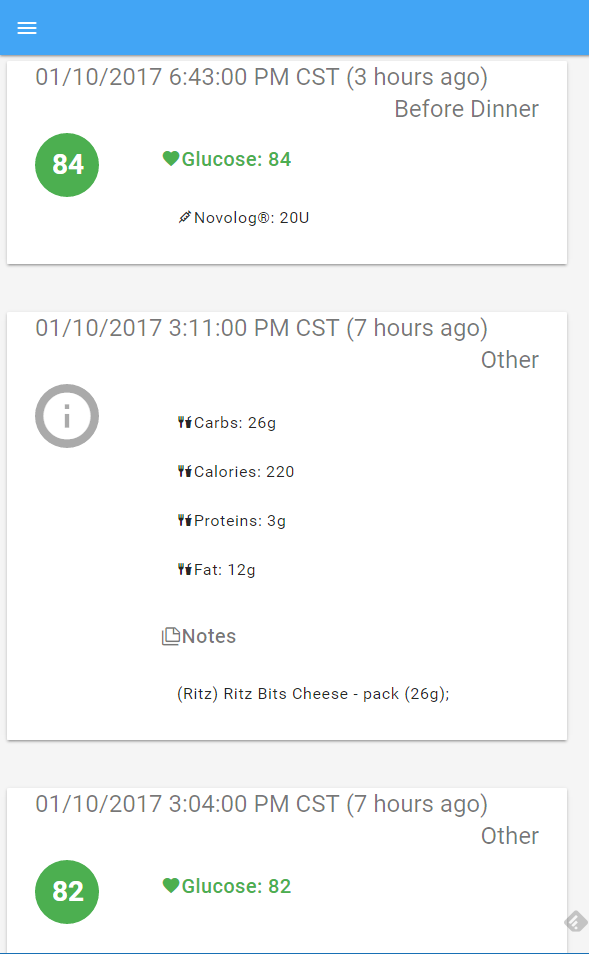
 

log


And, because I could, I added a dashboard with some charts

db1

This is just the beginning of what I have done. I have other things I want to add so my wife, and family, can support me in managing this so I can live a healthier life. Right now, the code for this is not publicly available because it is still very tied to my information and configuration. I will work towards getting this in a place that I can share the code so others can use this.


Some other ideas that I think will be fun, and useful:

  • Alexa Skill – Wife will be able to ask Alexa what my glucose is, and will respond with something like "about 32 minutes ago, Ryan's glucose was 132"
  • iOS/Android 'support' app to be able to receive push notifications when there is a reason for concern, like high, or low glucose levels.
  • More detailed reports and the ability to change the timespan of the data.
  • Support for other systems to monitor the database changes. I have multiple Raspberry PI's that are always running, one of them could monitor the database for changes in Dropbox and the rPi could sync the database.
  • Nightscout (CGM in the Cloud) – Integration / Support for Nightscout and all the work that the community has already done here.

Sunday, June 12, 2016

Installing Git on a Jenkins Windows Slave

Recently working on getting a Jenkins Windows build slave up and running, I noticed that the builds would hang, and timeout. The build would get stuck during the clone of the repository. Furthermore, if the build tried to run again, it would error out while trying to clean up the workspace.

We are using Chef and the Jenkins Cookbook to set up the Windows slave. Git for Windows is installed via Chocolatey. After a couple days of trial and error, here is what I found, and how I fixed it.


The latest versions of Git for Windows installer, we are installing 2.8.4, installs the Credential Manager by default. I have been unable to find a way to disable this option during the install, if you know a way, I would love to hear the solution to that.

(Here is a screenshot I found of the option, though it is from the 2.7.4 installer)


The credential manager stores your git user/password for your repositories, so you don’t have to enter them every time. Well, we are using Jenkins, and Jenkins does not get mad about having to enter the credentials every time. Also, the credential manager pops up this dialog when you try to clone a repository that requires authentication


When this pops up, the Jenkins build executor is stuck because it does not know how to enter input into this dialog.


We need to tell git that we do no want to use this credential helper, since we have no way to prevent it from being installed. To do this, with chef, I created a file in files/default called base.gitconfig.

[core]
	autocrlf = true
	askpass = true

Next, in the recipe, I put the file on the system in c:\program files\git\mingw64\etc\ named gitconfig.

cookbook_file "C:/Program Files/Git/mingw64/etc/gitconfig" do
  source 'base.gitconfig'
  owner node['jenkins']['os']['windows']['user']
  group node['jenkins']['os']['windows']['group']
end
Now when the Windows slave attempts to do a git clone, it no longer will use the credential manager and pop up the dialog, and everything works flawlessly.

Thursday, April 14, 2016

Change Colors in PowerShell Console

I have my powershell console window have a black background and slightly transparent. The default colors here work for most things, except errors. Errors were hard to read, especially when projecting to a secondary monitor. I found on the web that you can change the foreground color for powershell errors by setting $host.privatedata.ErrorForegroundColor. But the problem with these solutions that I found was that they just said “from a PS prompt, set the color”. I wanted something a little more permanent.

What I came up with was to set the values that I want in my PowerShell profile file that is located at [Environment]::GetFolderPath("MyDocuments")/WindowsPowerShell/Microsoft.PowerShell_profile.ps1.

Here is what I put in mine:

$host.privatedata.ErrorForegroundColor = 'Magenta';
$host.privatedata.ErrorBackgroundColor = 'Black';
$host.privatedata.WarningForegroundColor = 'Yellow';
$host.privatedata.WarningBackgroundColor = 'Black';
$host.privatedata.DebugForegroundColor = 'DarkGray';
$host.privatedata.DebugBackgroundColor = 'Black';
$host.privatedata.VerboseForegroundColor = 'White';
$host.privatedata.VerboseBackgroundColor = 'Black';
$host.privatedata.ProgressForegroundColor = 'DarkBlue';
$host.privatedata.ProgressBackgroundColor = 'DarkCyan';


image

Now my errors are readable.

To see what values you can set them to just execute: [system.consolecolor]::GetNames("consolecolor").

Tuesday, April 12, 2016

Running kitchen converge on Windows 2012r2 image on OpenStack

I have been working with my team to get Windows 2012r2 image chef cookbook to converge in an OpenStack environment. We have run in to a lot of issues, and I am confident that some of those were because of my lack of experience with chef/windows. One of the big issues that we encountered was kitchen unable to WINRM in to the box. It would just keep throwing [winrm] HTTPClient::ConnectionTimeoutException. We noticed that if someone manually logs on to the machine, and they are presented with the User must change password for the account. After they enter the password, they are prompted with Choose the type of network for the machine.

This had me thinking. If the user account is set to require the password to be changed, Windows will not allow anyone to remotely logon to the machine with that account. So I tested this theory. I spun up the Windows2012r2 image in OpenStack and attempted to connect with Enter-PSSession. I was getting an error that the connection could not be established. Specifically:

WinRM cannot complete the operation. Verify that the specified computer name is valid, that the computer is accessible over the network, 
and that a firewall exception for the WinRM service is enabled and allows access from this computer. By default, the WinRM firewall
exception for public profiles limits access to remote computers within the same local subnet.

This lead me to determine that because the network type has not been selected, the second thing the user is presented with after manually logging in, WinRM is not letting the connection happen. I then figured that because this machine has CloudInit, there has to be a way to set the network type to be private. If this machine was added to the Domain, this would not be an issue, but this is a ephemeral machine just to test the changes to the cookbook and verify it works so it is not on the Domain. After some research I came across Setting Network Location to Private blog post by Vladimir Averkin. This post has a block of PowerShell that enumerates all networks, post-Vista machines that are not joined to a Domain, and sets them to Private.

# Skip network location setting for pre-Vista operating systems
if([environment]::OSVersion.version.Major -lt 6) { return } # Skip network location setting if local machine is joined to a domain.
if(1,3,4,5 -contains (Get-WmiObject win32_computersystem).DomainRole) { return } # Get network connections
$networkListManager = [Activator]::CreateInstance([Type]::GetTypeFromCLSID([Guid]"{DCB00C01-570F-4A9B-8D69-199FDBA5723B}"))
$connections = $networkListManager.GetNetworkConnections() # Set network location to Private for all networks
$connections | % {$_.GetNetwork().SetCategory(1)}

Perfect!

I launched a new instance on OpenStack, this time in the Post-Creation I added the script above, making sure to specify #ps1_sysnative at the top to let cloudinit know that we are running some PowerShell. Then waited…

Fired up PowerShell and ran Enter-PSSession... Failed, Access is denied. This has to be the issue with the user being prompted to change the password. Went back into OpenStack, launched another instance. This time at the end of the above script, I added:

net user KitchenCIUser KitchenCIUserPassword

Then I waited again… I started running Test-WSMan until it came back successful. Then I ran Enter-PSSession one more time. SUCCESS! I was now connected to the machine via PSRemoting.

Now one last hurdle, how do I specify the CloudInit script with the .kitchen.yml. Well, as it turns out, the kitchen-openstack driver supports this.

driver_config:
  user_data: cloud-init.txt

Then just have to create the cloud-init.txt file in the same path as the .kitchen.yml. I saved the changes, committed to repository and watched as jenkins kicked off the build. Oh, and I waited…

Success! Kitchen was able to use WinRM and converge the box, now on to the next problem that I am sure we will encounter.

Saturday, April 2, 2016

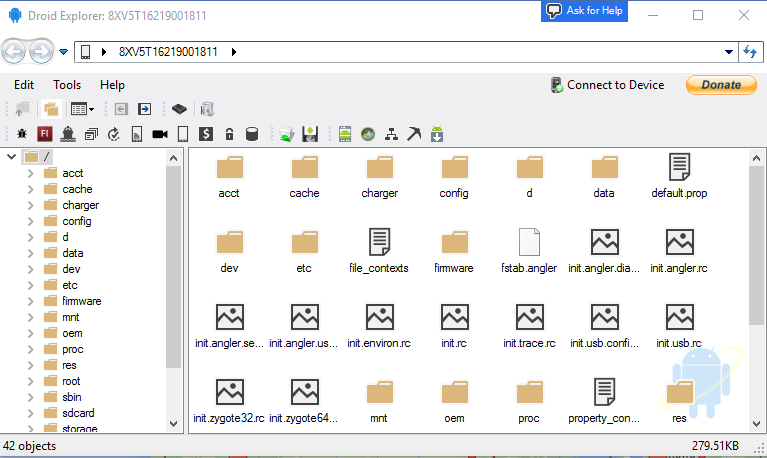
Droid Explorer working on Non-Rooted Device

I have started doing some work on removing the dependency on rooted device, specifically, busybox. This is no where near complete, and is buggy, at best. As you can see from the screenshot, you can see most of the folders, but if you try to go in to some of them, you will not see any files. This is my Nexus 6P, which is not rooted, connected to Droid Explorer. I do not have busybox or anything else special installed.

no-root

It doesn’t look like much, but this is a big change to the code base. I have been removing code from the Core.CommandRunner, the code that handles 99% of the communication between your computer and your device. Instead it is making use of madb, which minimizes the need for adb, and only uses it to act as the adb server. While the old code used adb as the server, but also depended on the adb client to do the communication to the device. Madb is the client, and it does all the communication to the adb server.


No binaries available yet, as I stated, this is very early. The code will be available on the Droid Explorer Github soon.

Type 2 Diabetes Diagnosis

I won't go through all the details, but on December 26th, 2016, I was diagnosed with Type 2 Diabetes. As you probably expect, it means a drastic life-style change for me. I have to give insulin injections, and monitor blood glucose, as well as monitor the amount of carbohydrates that I consume. To help me track that information I found an application on Google Play called Diabetes:M (Play Store). The application is free, but ad supported. You can purchase the ad-free license for ~$9 or so, which I purchased as soon as I was sure it was the application that I wanted to use.

2017-01-11 04.04.33

This allows me to track everything that I need to be successful in controlling my diabetes. This includes information like my meals, my medications, blood pressure, insulin injections, etc. One of my favorite features of Diabetes:M is the ability for the application to sync the SQLite database, that contains all of the logged data, to a cloud storage provider like Dropbox. This, as a developer, got me thinking how I could leverage that so that I can provide my information to my wife so she is aware of what my current blood glucose level is.

To start this project I created an Express node application and put a copy of the SQLite database in the directory structure of the application. I then went to work on creating some SQL queries to pull information from the Diabetes:M database. To start, I queried my most recent glucose level.

dm

One of the important steps to make the data current was for me to find a way to detect when a new version of the database was saved to my Dropbox. To do this, I found an application (for windows) called Directory Monitor. There is a free version of the application, which is what I am currently using, as the free version fits all my needs. I configured the application to run a shell script when the SQLite database file is modified on my system, which happens every time I log information in the Android application.

dm-info

The shell script goes and extracts the dbz file, which is just a gzipped (or some other compression) SQLite file. It takes that extracted database file and puts it in the /data directory in the express application. It then does a git commit and git push of the git repository. This commit triggers a deploy in Azure. Within seconds of me taking my glucose level, the database is updated on Azure, so when my wife wants to check to see how I am doing, she can see the data in near real-time.

So when she opens the site on her phone she would see something like the following:


current-level


She can even see a history of all the events that I have entered into Diabetes:M


log


And, because I could, I added a dashboard with some charts

db1

This is just the beginning of what I have done. I have other things I want to add so my wife, and family, can support me in managing this so I can live a healthier life. Right now, the code for this is not publicly available because it is still very tied to my information and configuration. I will work towards getting this in a place that I can share the code so others can use this.


Some other ideas that I think will be fun, and useful:

  • Alexa Skill – Wife will be able to ask Alexa what my glucose is, and will respond with something like "about 32 minutes ago, Ryan's glucose was 132"
  • iOS/Android 'support' app to be able to receive push notifications when there is a reason for concern, like high, or low glucose levels.
  • More detailed reports and the ability to change the timespan of the data.
  • Support for other systems to monitor the database changes. I have multiple Raspberry PI's that are always running, one of them could monitor the database for changes in Dropbox and the rPi could sync the database.
  • Nightscout (CGM in the Cloud) – Integration / Support for Nightscout and all the work that the community has already done here.

Installing Git on a Jenkins Windows Slave

Recently working on getting a Jenkins Windows build slave up and running, I noticed that the builds would hang, and timeout. The build would get stuck during the clone of the repository. Furthermore, if the build tried to run again, it would error out while trying to clean up the workspace.

We are using Chef and the Jenkins Cookbook to set up the Windows slave. Git for Windows is installed via Chocolatey. After a couple days of trial and error, here is what I found, and how I fixed it.


The latest versions of Git for Windows installer, we are installing 2.8.4, installs the Credential Manager by default. I have been unable to find a way to disable this option during the install, if you know a way, I would love to hear the solution to that.

(Here is a screenshot I found of the option, though it is from the 2.7.4 installer)


The credential manager stores your git user/password for your repositories, so you don’t have to enter them every time. Well, we are using Jenkins, and Jenkins does not get mad about having to enter the credentials every time. Also, the credential manager pops up this dialog when you try to clone a repository that requires authentication


When this pops up, the Jenkins build executor is stuck because it does not know how to enter input into this dialog.


We need to tell git that we do no want to use this credential helper, since we have no way to prevent it from being installed. To do this, with chef, I created a file in files/default called base.gitconfig.

[core]
	autocrlf = true
	askpass = true

Next, in the recipe, I put the file on the system in c:\program files\git\mingw64\etc\ named gitconfig.

cookbook_file "C:/Program Files/Git/mingw64/etc/gitconfig" do
  source 'base.gitconfig'
  owner node['jenkins']['os']['windows']['user']
  group node['jenkins']['os']['windows']['group']
end
Now when the Windows slave attempts to do a git clone, it no longer will use the credential manager and pop up the dialog, and everything works flawlessly.

Change Colors in PowerShell Console

I have my powershell console window have a black background and slightly transparent. The default colors here work for most things, except errors. Errors were hard to read, especially when projecting to a secondary monitor. I found on the web that you can change the foreground color for powershell errors by setting $host.privatedata.ErrorForegroundColor. But the problem with these solutions that I found was that they just said “from a PS prompt, set the color”. I wanted something a little more permanent.

What I came up with was to set the values that I want in my PowerShell profile file that is located at [Environment]::GetFolderPath("MyDocuments")/WindowsPowerShell/Microsoft.PowerShell_profile.ps1.

Here is what I put in mine:

$host.privatedata.ErrorForegroundColor = 'Magenta';
$host.privatedata.ErrorBackgroundColor = 'Black';
$host.privatedata.WarningForegroundColor = 'Yellow';
$host.privatedata.WarningBackgroundColor = 'Black';
$host.privatedata.DebugForegroundColor = 'DarkGray';
$host.privatedata.DebugBackgroundColor = 'Black';
$host.privatedata.VerboseForegroundColor = 'White';
$host.privatedata.VerboseBackgroundColor = 'Black';
$host.privatedata.ProgressForegroundColor = 'DarkBlue';
$host.privatedata.ProgressBackgroundColor = 'DarkCyan';


image

Now my errors are readable.

To see what values you can set them to just execute: [system.consolecolor]::GetNames("consolecolor").

Running kitchen converge on Windows 2012r2 image on OpenStack

I have been working with my team to get Windows 2012r2 image chef cookbook to converge in an OpenStack environment. We have run in to a lot of issues, and I am confident that some of those were because of my lack of experience with chef/windows. One of the big issues that we encountered was kitchen unable to WINRM in to the box. It would just keep throwing [winrm] HTTPClient::ConnectionTimeoutException. We noticed that if someone manually logs on to the machine, and they are presented with the User must change password for the account. After they enter the password, they are prompted with Choose the type of network for the machine.

This had me thinking. If the user account is set to require the password to be changed, Windows will not allow anyone to remotely logon to the machine with that account. So I tested this theory. I spun up the Windows2012r2 image in OpenStack and attempted to connect with Enter-PSSession. I was getting an error that the connection could not be established. Specifically:

WinRM cannot complete the operation. Verify that the specified computer name is valid, that the computer is accessible over the network, 
and that a firewall exception for the WinRM service is enabled and allows access from this computer. By default, the WinRM firewall
exception for public profiles limits access to remote computers within the same local subnet.

This lead me to determine that because the network type has not been selected, the second thing the user is presented with after manually logging in, WinRM is not letting the connection happen. I then figured that because this machine has CloudInit, there has to be a way to set the network type to be private. If this machine was added to the Domain, this would not be an issue, but this is a ephemeral machine just to test the changes to the cookbook and verify it works so it is not on the Domain. After some research I came across Setting Network Location to Private blog post by Vladimir Averkin. This post has a block of PowerShell that enumerates all networks, post-Vista machines that are not joined to a Domain, and sets them to Private.

# Skip network location setting for pre-Vista operating systems
if([environment]::OSVersion.version.Major -lt 6) { return } # Skip network location setting if local machine is joined to a domain.
if(1,3,4,5 -contains (Get-WmiObject win32_computersystem).DomainRole) { return } # Get network connections
$networkListManager = [Activator]::CreateInstance([Type]::GetTypeFromCLSID([Guid]"{DCB00C01-570F-4A9B-8D69-199FDBA5723B}"))
$connections = $networkListManager.GetNetworkConnections() # Set network location to Private for all networks
$connections | % {$_.GetNetwork().SetCategory(1)}

Perfect!

I launched a new instance on OpenStack, this time in the Post-Creation I added the script above, making sure to specify #ps1_sysnative at the top to let cloudinit know that we are running some PowerShell. Then waited…

Fired up PowerShell and ran Enter-PSSession... Failed, Access is denied. This has to be the issue with the user being prompted to change the password. Went back into OpenStack, launched another instance. This time at the end of the above script, I added:

net user KitchenCIUser KitchenCIUserPassword

Then I waited again… I started running Test-WSMan until it came back successful. Then I ran Enter-PSSession one more time. SUCCESS! I was now connected to the machine via PSRemoting.

Now one last hurdle, how do I specify the CloudInit script with the .kitchen.yml. Well, as it turns out, the kitchen-openstack driver supports this.

driver_config:
  user_data: cloud-init.txt

Then just have to create the cloud-init.txt file in the same path as the .kitchen.yml. I saved the changes, committed to repository and watched as jenkins kicked off the build. Oh, and I waited…

Success! Kitchen was able to use WinRM and converge the box, now on to the next problem that I am sure we will encounter.

Droid Explorer working on Non-Rooted Device

I have started doing some work on removing the dependency on rooted device, specifically, busybox. This is no where near complete, and is buggy, at best. As you can see from the screenshot, you can see most of the folders, but if you try to go in to some of them, you will not see any files. This is my Nexus 6P, which is not rooted, connected to Droid Explorer. I do not have busybox or anything else special installed.

no-root

It doesn’t look like much, but this is a big change to the code base. I have been removing code from the Core.CommandRunner, the code that handles 99% of the communication between your computer and your device. Instead it is making use of madb, which minimizes the need for adb, and only uses it to act as the adb server. While the old code used adb as the server, but also depended on the adb client to do the communication to the device. Madb is the client, and it does all the communication to the adb server.


No binaries available yet, as I stated, this is very early. The code will be available on the Droid Explorer Github soon.