Friday, December 29, 2017

Setting up Artifactory as Docker Registry

I was setting up artifactory as a docker registry on-premises with a self-signed certificate. This was not as simple as some of the docs suggested. It took me a bit to put together the process for this as it wasn’t really laid out in any single place. Here is what I did to get it working.

Distro: Ubuntu 16.04

I decided to do the subdomain method for setup. my FQDN that I will be subdomaining off of is artifactory.contoso.com. Each subdomain will be a different registry within artifactory. This will assume you already have an NGINX  instance setup to do the reverse proxy with the configuration defined by the Artifactory Reverse Proxy Generator.

Create self-signed certificate. I store mine in /mnt/data/ssl

$ openssl req -newkey rsa:2048 -nodes –keyout /mnt/data/ssl/wildcard.artifactory.contoso.com.key -x509 -days 365 –out /mnt/data/ssl/wildcard.artifactory.contoso.com.cert

Need to make this certificate available for docker

# mkdir –p /etc/docker/certs.d/wildcard.artifactory.contoso.com;
# cp /mnt/data/ssl/wildcard.artifactory.contoso.com.key /etc/docker/certs.d/wildcard.artifactory.contoso.com/domain.key;
# cp /mnt/data/ssl/wildcard.artifactory.contoso.com.cert /etc/docker/certs.d/wildcard.artifactory.contoso.com/domain.cert;
# ln –s /etc/docker/certs.d/wildcard.artifactory.contoso.com /etc/docker/certs.d/docker.artifactory.contoso.com;
# ln –s /etc/docker/certs.d/wildcard.artifactory.contoso.com /etc/docker/certs.d/docker-local.artifactory.contoso.com;

Now we have a folder setup for each subdomain for each docker registry in Artifactory. Next we need to add the certificates so the CA is known by the system.

# cp /mnt/data/ssl/wildcard.artifactory.contoso.com.key /usr/local/share/ca-certificates/wildcard.artifactory.contoso.com.key;
# cp /mnt/data/ssl/wildcard.artifactory.contoso.com.cert /usr/local/share/ca-certificates/wildcard.artifactory.contoso.com.crt;
# update-ca-certificates;

Next we need to add the domains to the docker options to allow them to be insecure.

# nano /etc/init.d/docker
### EDIT ###
DOCKER_OPTS="$DOCKER_OPTS --insecure-registry docker.artifactory.contoso.com --insecure-registry docker-local.artifactory.contoso.com

Finally, we just need to restart docker.

# systemctl restart docker

YMMV, but these are the steps that I needed to do to get things working for me.
Wednesday, December 13, 2017

No Matching Cipher Found

Today I tried to pull latest from the develop branch in a git repository in TFS 2015. I use SSH for authentication to tfs git repositories, and when I ran the git pull command, I was presented with the following error:

no matching cipher found. their offer: aes256-cbc,aes192-cbc,aes128-cbc

There were some other lines about making sure the repository existed, and that I had permission, etc. But this line was the one that sort of stood out to me. It is not an error that I have come across before. It took me a little while to track down the issue, which is why I am writing this.

The error is not a TFS issue, nor is it a git issue. The error is coming from SSH. I think it started after I updated my version of openSSH on my mac to version 7.6p1.

To fix the issue, I opened up /etc/ssh/ssh_config and added the lines:

Match Host my-tfs-server.company-domain.com
    Ciphers +aes128-cbc,aes192-cbc,aes256-cbc

You could make it less restrictive and omit Match Host line altogether, but I would rather add the exception for the specific servers that require it. After adding those lines, I was able to pull latest again.

Sunday, November 26, 2017

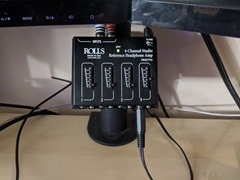
ROLLS HA43 PRO Monitor Post Mount

I have a ROLLS HA43 PRO 4 Channel Headphone amplifier and I have hated how it sits on my desk. It never stays where I want it, and is a pain to see what the volume is set to.

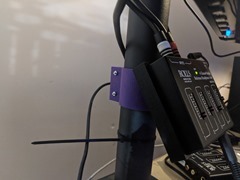
This weekend, I took some time in Autodesk Fusion 360 to design a tray to mount the HA43 to my monitor post. After a couple of test prints, and filament spool changes, it is finally printed.

If you have this amp, and a 2" (51mm) monitor post, you can download the files from Thingiverse.

2017-11-26 17.59.462017-11-26 18.41.072017-11-26 18.41.262017-11-26 18.42.03

Friday, October 20, 2017

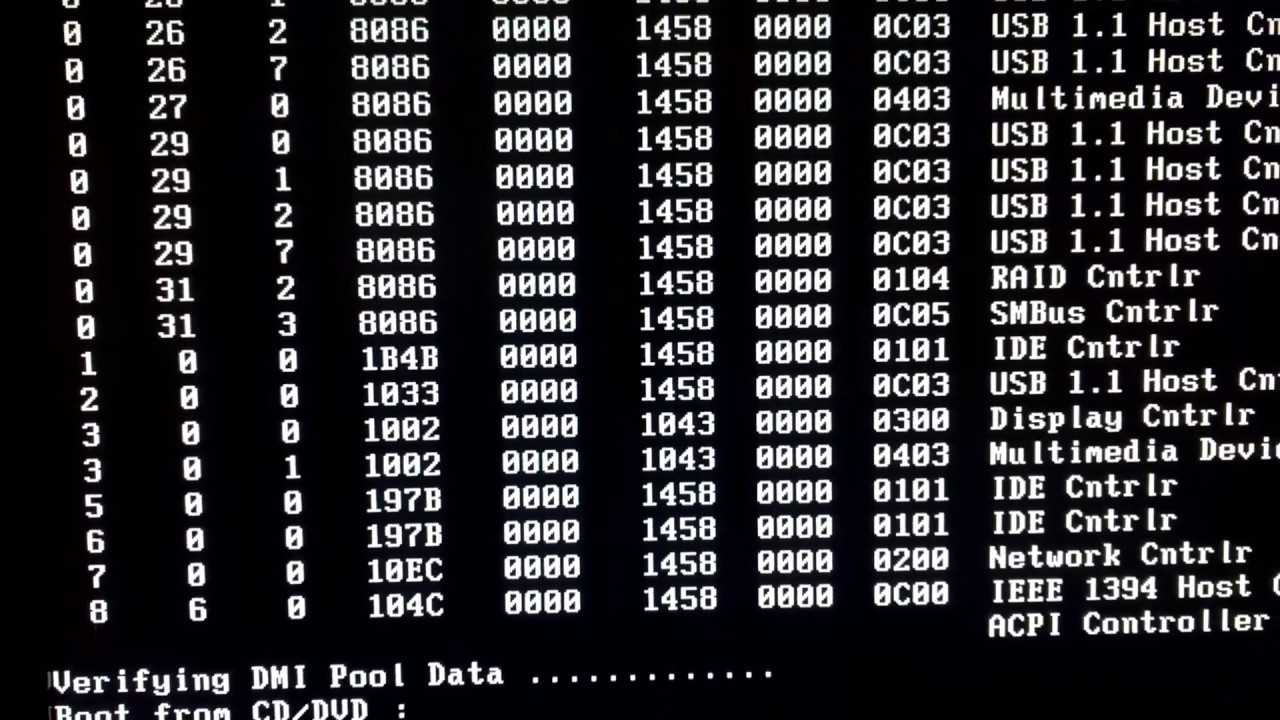
PAGE FAULT IN UNPAGED AREA Windows 10 Insider Build 17017 GSOD/BSOD

After updating to Windows Insider 17017, I rebooted. Once I did, I got stuck in a GSOD/BSOD boot loop. See the loop in this video:

After some time looking around and such, I found that I needed to copy the volsnap.sys file from the Windows.old folder to the current Windows folder.

Here are the steps I took:

  • Downloaded the Windows Media Creation Tool.
  • Booted off the USB created above.
  • Went into the Recovery tools for the system and opened the command console
  • move c:\Windows\System32\drivers\volsnap.sys c:\Windows\System32\drivers\volsnap.bkp
  • copy c:\Windows.old\Windows\System32\drivers\volsnap.sys c:\Windows\System32\drivers\volsnap.sys
  • reboot

System then booted up with no problem.

Saturday, September 23, 2017

User Docker Agents with Jenkins

I am running Jenkins in my home lab in docker container. I wanted to also have different agents for the different types of projects I was building, like building some of my Arduino projects for the different boards I have, or nodejs packages, etc.

I have the Jenkins Cloud Plugin and docker-plugin installed. I was having some issues configuring it to connect to the docker api, and the plugin documentation is out dated.

Since this is my lab, I just set up for TCP communication vs the docker.sock. The documentation says to edit the /etc/init/docker.conf. Except on Ubuntu 16.04 that is not used.

Instead, you have to edit /lib/systemd/system/docker.service and add -H 0.0.0.0:32376 to ExecStart.

Run systemctl daemon-reload

And finally, systemctl restart docker

Now docker engine will restart and it will be listening on port 32376. If you do curl –XGET http://localhost:32376 you should get a response.

You can now configure jenkins to use tcp://<docker-host>:32376 and hit test connection.

Setting up Artifactory as Docker Registry

I was setting up artifactory as a docker registry on-premises with a self-signed certificate. This was not as simple as some of the docs suggested. It took me a bit to put together the process for this as it wasn’t really laid out in any single place. Here is what I did to get it working.

Distro: Ubuntu 16.04

I decided to do the subdomain method for setup. my FQDN that I will be subdomaining off of is artifactory.contoso.com. Each subdomain will be a different registry within artifactory. This will assume you already have an NGINX  instance setup to do the reverse proxy with the configuration defined by the Artifactory Reverse Proxy Generator.

Create self-signed certificate. I store mine in /mnt/data/ssl

$ openssl req -newkey rsa:2048 -nodes –keyout /mnt/data/ssl/wildcard.artifactory.contoso.com.key -x509 -days 365 –out /mnt/data/ssl/wildcard.artifactory.contoso.com.cert

Need to make this certificate available for docker

# mkdir –p /etc/docker/certs.d/wildcard.artifactory.contoso.com;
# cp /mnt/data/ssl/wildcard.artifactory.contoso.com.key /etc/docker/certs.d/wildcard.artifactory.contoso.com/domain.key;
# cp /mnt/data/ssl/wildcard.artifactory.contoso.com.cert /etc/docker/certs.d/wildcard.artifactory.contoso.com/domain.cert;
# ln –s /etc/docker/certs.d/wildcard.artifactory.contoso.com /etc/docker/certs.d/docker.artifactory.contoso.com;
# ln –s /etc/docker/certs.d/wildcard.artifactory.contoso.com /etc/docker/certs.d/docker-local.artifactory.contoso.com;

Now we have a folder setup for each subdomain for each docker registry in Artifactory. Next we need to add the certificates so the CA is known by the system.

# cp /mnt/data/ssl/wildcard.artifactory.contoso.com.key /usr/local/share/ca-certificates/wildcard.artifactory.contoso.com.key;
# cp /mnt/data/ssl/wildcard.artifactory.contoso.com.cert /usr/local/share/ca-certificates/wildcard.artifactory.contoso.com.crt;
# update-ca-certificates;

Next we need to add the domains to the docker options to allow them to be insecure.

# nano /etc/init.d/docker
### EDIT ###
DOCKER_OPTS="$DOCKER_OPTS --insecure-registry docker.artifactory.contoso.com --insecure-registry docker-local.artifactory.contoso.com

Finally, we just need to restart docker.

# systemctl restart docker

YMMV, but these are the steps that I needed to do to get things working for me.

No Matching Cipher Found

Today I tried to pull latest from the develop branch in a git repository in TFS 2015. I use SSH for authentication to tfs git repositories, and when I ran the git pull command, I was presented with the following error:

no matching cipher found. their offer: aes256-cbc,aes192-cbc,aes128-cbc

There were some other lines about making sure the repository existed, and that I had permission, etc. But this line was the one that sort of stood out to me. It is not an error that I have come across before. It took me a little while to track down the issue, which is why I am writing this.

The error is not a TFS issue, nor is it a git issue. The error is coming from SSH. I think it started after I updated my version of openSSH on my mac to version 7.6p1.

To fix the issue, I opened up /etc/ssh/ssh_config and added the lines:

Match Host my-tfs-server.company-domain.com
    Ciphers +aes128-cbc,aes192-cbc,aes256-cbc

You could make it less restrictive and omit Match Host line altogether, but I would rather add the exception for the specific servers that require it. After adding those lines, I was able to pull latest again.

ROLLS HA43 PRO Monitor Post Mount

I have a ROLLS HA43 PRO 4 Channel Headphone amplifier and I have hated how it sits on my desk. It never stays where I want it, and is a pain to see what the volume is set to.

This weekend, I took some time in Autodesk Fusion 360 to design a tray to mount the HA43 to my monitor post. After a couple of test prints, and filament spool changes, it is finally printed.

If you have this amp, and a 2" (51mm) monitor post, you can download the files from Thingiverse.

2017-11-26 17.59.462017-11-26 18.41.072017-11-26 18.41.262017-11-26 18.42.03

PAGE FAULT IN UNPAGED AREA Windows 10 Insider Build 17017 GSOD/BSOD

After updating to Windows Insider 17017, I rebooted. Once I did, I got stuck in a GSOD/BSOD boot loop. See the loop in this video:

After some time looking around and such, I found that I needed to copy the volsnap.sys file from the Windows.old folder to the current Windows folder.

Here are the steps I took:

  • Downloaded the Windows Media Creation Tool.
  • Booted off the USB created above.
  • Went into the Recovery tools for the system and opened the command console
  • move c:\Windows\System32\drivers\volsnap.sys c:\Windows\System32\drivers\volsnap.bkp
  • copy c:\Windows.old\Windows\System32\drivers\volsnap.sys c:\Windows\System32\drivers\volsnap.sys
  • reboot

System then booted up with no problem.

User Docker Agents with Jenkins

I am running Jenkins in my home lab in docker container. I wanted to also have different agents for the different types of projects I was building, like building some of my Arduino projects for the different boards I have, or nodejs packages, etc.

I have the Jenkins Cloud Plugin and docker-plugin installed. I was having some issues configuring it to connect to the docker api, and the plugin documentation is out dated.

Since this is my lab, I just set up for TCP communication vs the docker.sock. The documentation says to edit the /etc/init/docker.conf. Except on Ubuntu 16.04 that is not used.

Instead, you have to edit /lib/systemd/system/docker.service and add -H 0.0.0.0:32376 to ExecStart.

Run systemctl daemon-reload

And finally, systemctl restart docker

Now docker engine will restart and it will be listening on port 32376. If you do curl –XGET http://localhost:32376 you should get a response.

You can now configure jenkins to use tcp://<docker-host>:32376 and hit test connection.